
Simple, Secure Sign-In Is Here
Beginning May 16, 2026, we’re introducing Duo, a simple and convenient way to confirm your identity when signing in to your account online. This added protection helps ensure that only you can access your account while keeping the sign-in process easy and straightforward.
Before signing in with Duo for the first time, you’ll need to complete a brief one-time setup process. Most customers complete the setup in just a few minutes.
If you have any questions or would like assistance, our team is ready to help: Email us or call 1-800-367-2663.
To setup quickly and simply, we recommend choosing one of the following verification methods described below: Phone Number Verification or Mobile App Verification.
Phone Number Verification
One of the easiest ways to protect your account is by using a phone number for verification.
When you log in, we may send you a text message with a security code or an automated phone call to confirm it’s you
Most customers choose this option because it is simple and familiar.
Before you begin, you will need:
- A mobile phone that can receive text messages or phone calls. You may also use a landline phone for phone-call verification.
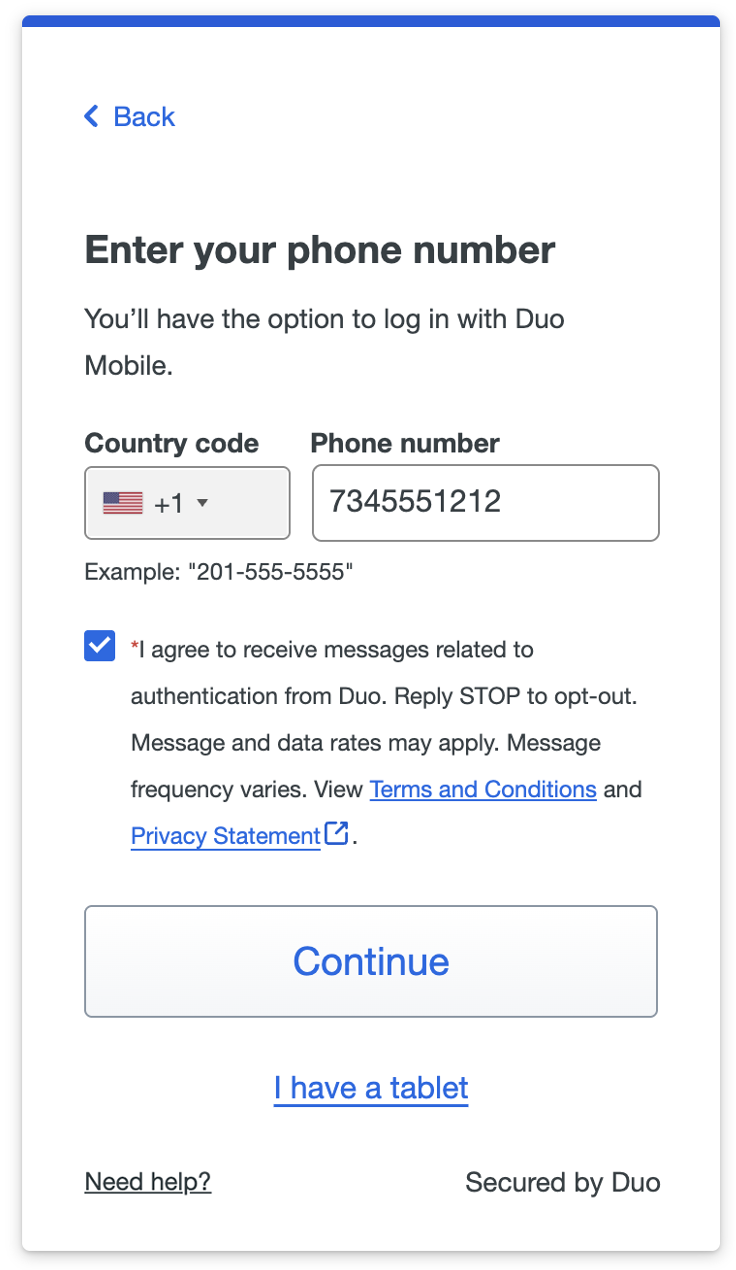
Step 1: Enter Your Phone number
Choose your country and enter your phone number. You must consent to receive authentication messages from Duo before you select Continue. If you are using a landline, select This is a landline phone.
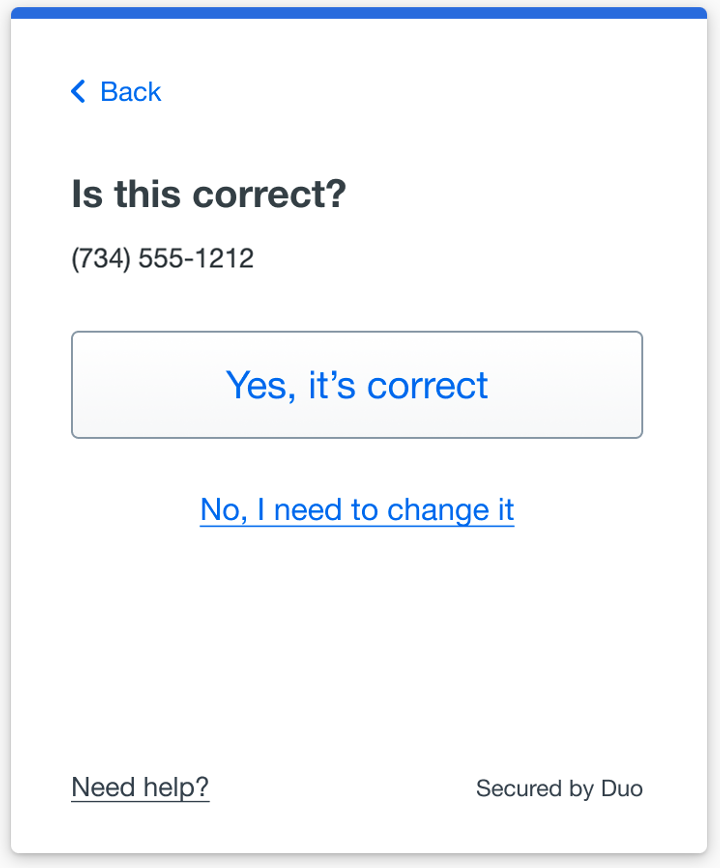
Step 2: Confirm Your Number
We’ll ask you to confirm that the phone number is correct.
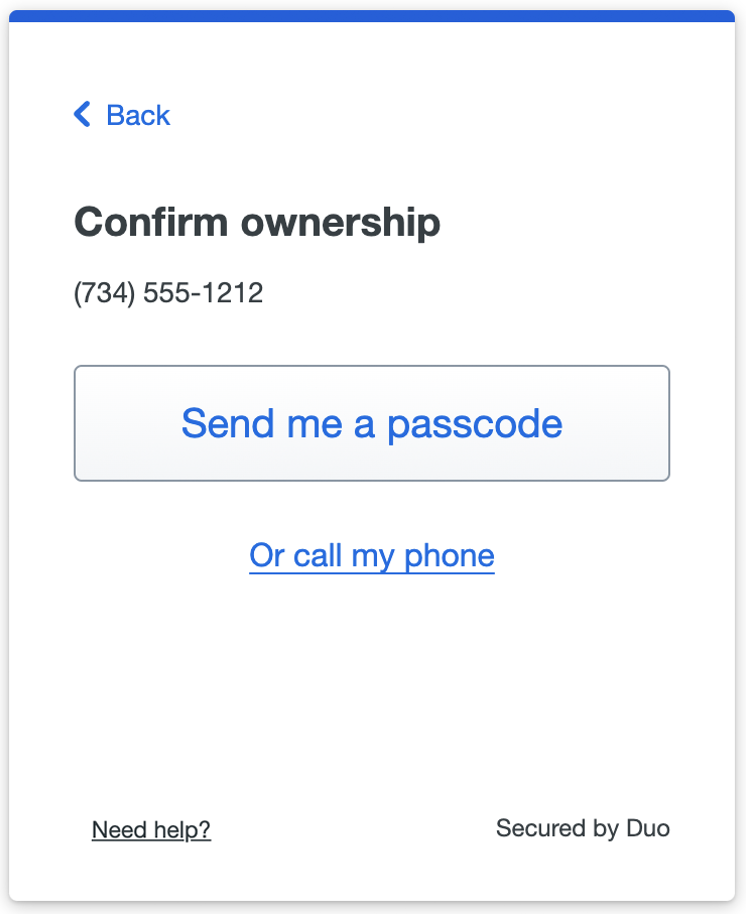
Step 3: Choose How You Want to Verify
You can choose to:
- Receive a text message with a security code, or
- Receive an automated phone call
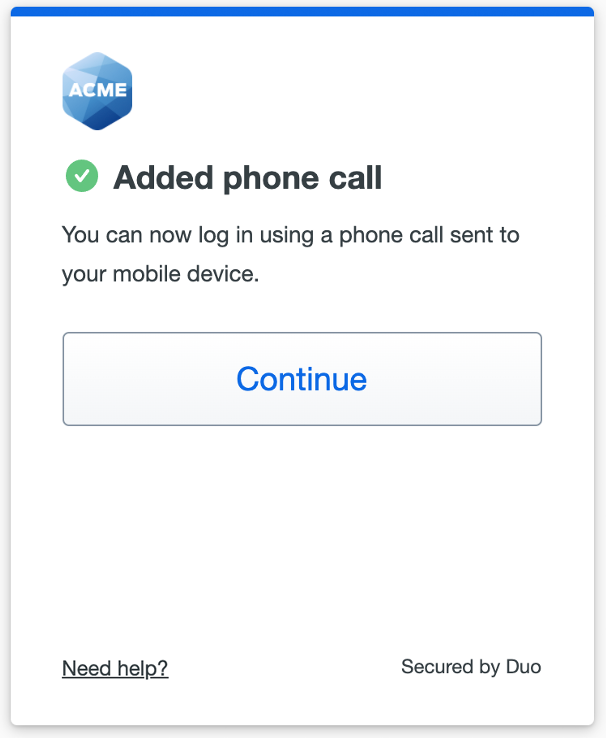
Step 4: Finish Setup
When you receive confirmation of adding the new mobile phone number for texts or calls, select Continue to login to log into with a passcode received via text message or a phone call from Duo.
If you added a landline phone number, select Continue to log into the application with a phone call from Duo.
After entering your username and password:
- We may send a security code by text message, or
- Call your phone to confirm it’s you
Simply follow the instructions to complete sign-in.
Need Help?
If you need help, email us or call 1-800-367-2663.
Mobile App Verification
Another easy way to protect your account is by using the Duo Mobile app on your smartphone or tablet. It works with Wi-Fi or mobile data and does not require cellular service.
The current version of Duo Mobile supports iOS17 or later and Android 12 or later.
Before you begin you will need:
- A smartphone or tablet
- Internet access
Step 1: Enter Your Phone Number
Select your country and enter your mobile phone number. Review the number carefully. You must consent to receive authentication messages from Duo before you select Continue.
If you’re going to use Duo Mobile on a tablet (like an iPad) with no phone service, don’t enter a phone number and select I have a tablet instead.
Step 2: Confirm the Phone Number
If you entered a phone number, double-check that you entered it correctly and select Yes, it’s correct to continue (or No, I need to change it to go back and enter the number again).
If you already use Duo for another account or service, you may be asked to confirm your phone number with a text message or phone call before setup can continue. Choose how you want to receive the code and enter it to complete verification and continue.
Step 3: Install the Duo Mobile App
Download the free Duo Mobile app from the Apple App Store (iPhone or iPad) or the Google Play Store (Android devices). Once you have Duo Mobile installed, select Next.
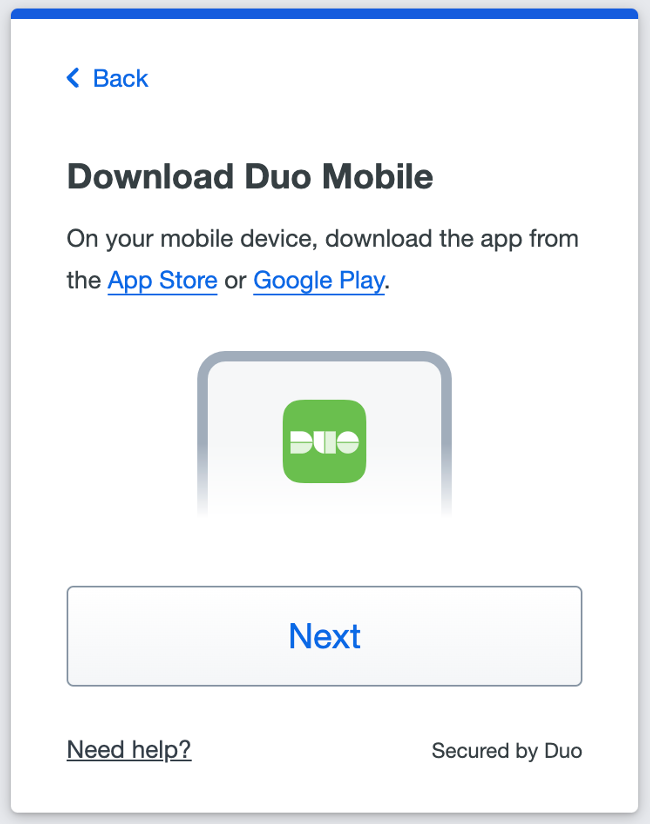
Step 4: Connect Your Device
Open the Duo Mobile app and scan the QR code shown on the screen.
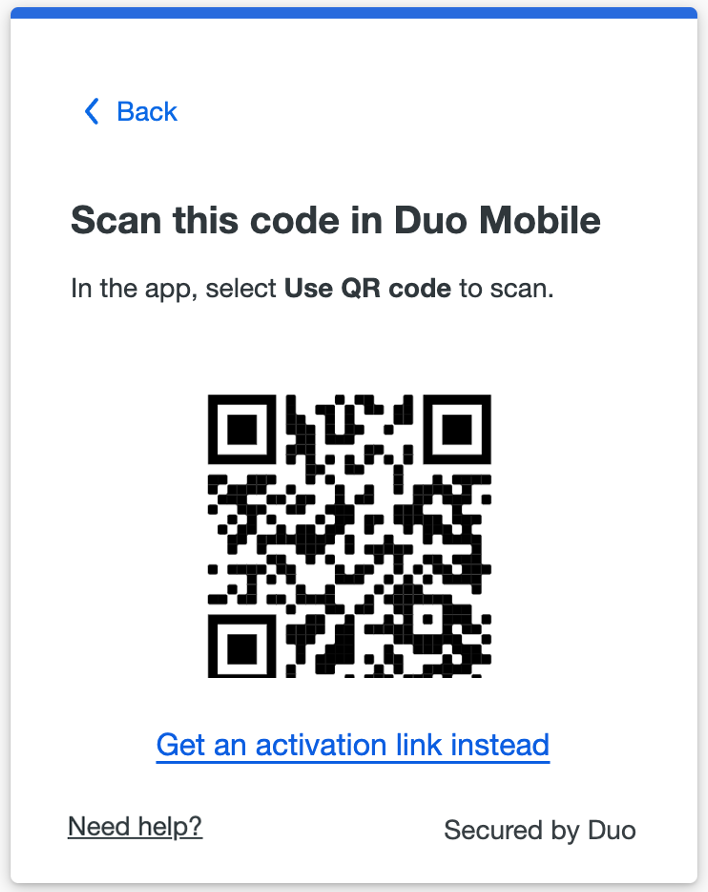
If you aren’t able to scan the QR code, select Get an activation link instead and then enter your email address to send the activation link to yourself. Follow the instructions in the email to activate the new account in Duo Mobile.
If you’re on a mobile device, select Open Duo Mobile to activate the new account in Duo Mobile.
Step 5: Finish Setup
When you receive confirmation that Duo Mobile was added, select Continue.
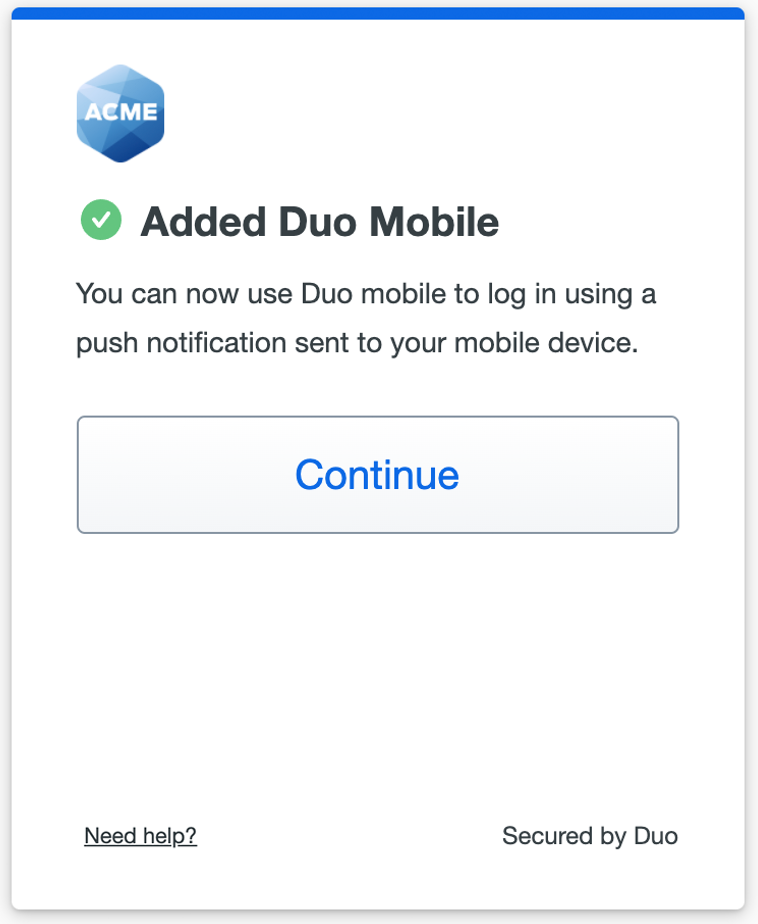
Once setup is complete, you can use the Duo Mobile app on your phone or tablet to quickly confirm it’s you when signing in.
Helpful tips
- Duo Mobile works with Wi-Fi or mobile data
- If you get a new phone, you may need to reconnect to Duo Mobile
Need Help?
If you need help, email us or call 1-800-367-2663.
The two recommended methods above are the easiest options for most customers. Additional verification methods are also available depending on your device and personal preference.
Face ID or Touch ID on iPhone or iPad
Use the Face ID or Touch ID already built into your iPhone or iPad to quickly confirm your identity when signing in.
Before you begin, you will need:
- An iPhone or iPad with Face ID or Touch ID enabled.
Step 1: Choose Face ID or Touch ID
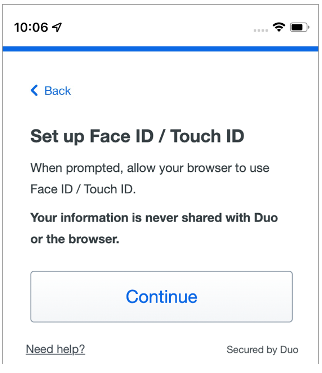
During Duo setup, select: Face ID or Touch ID on iPhone or iPad. Then select Continue.
Step 2: Confirm Your Identity
Follow the instructions on your device to scan your face using Face ID, or scan your fingerprint using Touch ID verification.
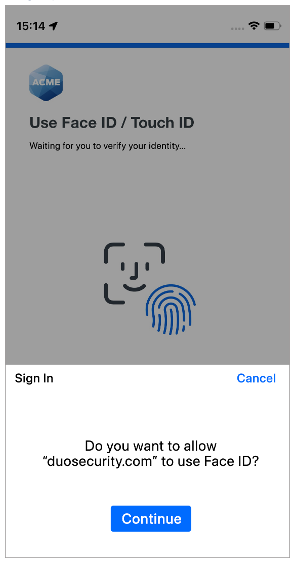
Step 3: Finish Setup
When you receive confirmation that you added Face ID as a verification method, select Continue.
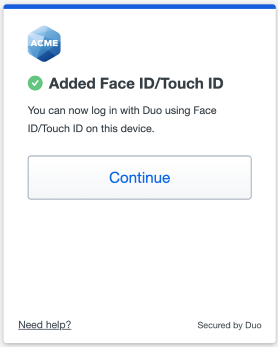
You can now use Face ID or Touch ID on your iPhone or iPad to quickly confirm your identity when signing in.
Helpful tips
- Face ID and Touch ID use the security features already built into your Apple device
- If you get a new device, you may need to reconnect it to Duo
- We recommend adding a backup verification method in case your device is unavailable
Need Help?
- If you need help, email us or call 1-800-367-2663.
Android Biometrics
Use the security features already built into your Android device to quickly confirm your identity when signing in.
Depending on your device settings, Android verification may allow you to verify your identity using your fingerprint, facial recognition or your device PIN.
Step 1: Choose Android Verification
Select Device Verification and then select Continue.
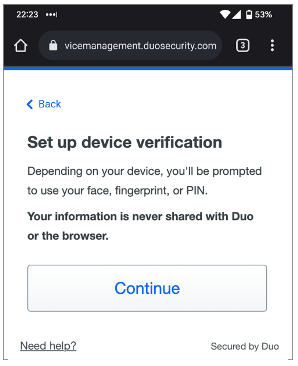
Step 2: Confirm Your Identity.
Follow the Android instructions to verify your identity by scanning your fingerprint or pointing your face to your camera. If you aren’t able to do either of these biometric checks, you can enter your Android PIN.
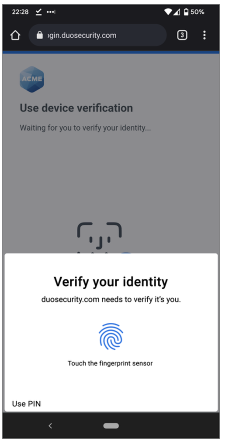
Step 3: Finish Setup
When you receive confirmation that you added your Android device as a verification method, select Continue.
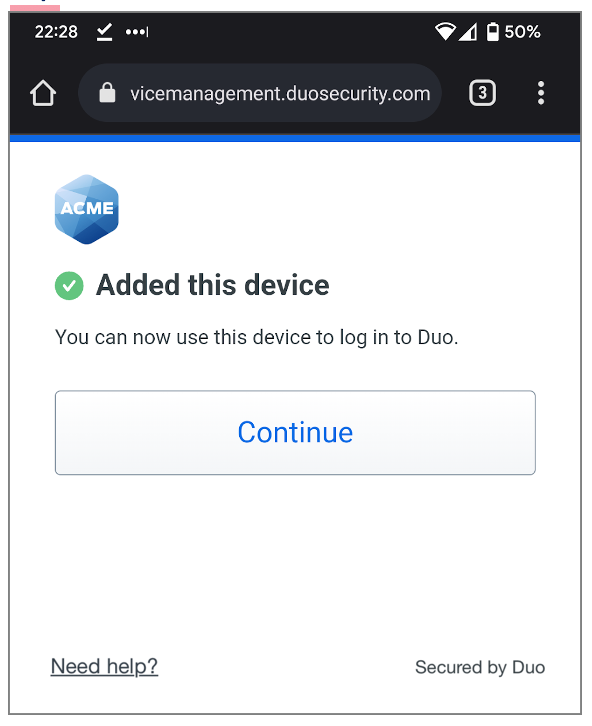
You can now use your Android device to quickly confirm your identity when signing in.
Windows Hello
Step 1: Read the Windows Hello information and select Continue.
Windows Hello uses the security features already built into your Windows computer to quickly confirm your identity when signing in.
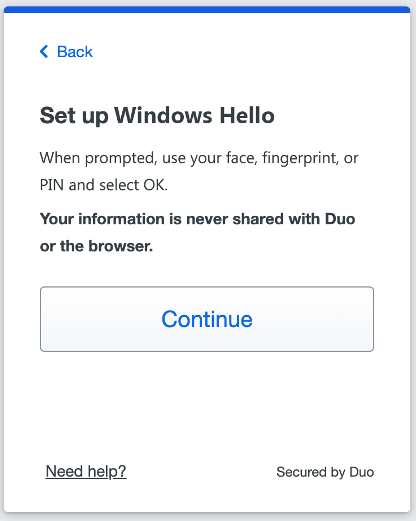
Step 2: Confirm Your Identity.
Follow the Windows Hello instructions to verify your identity by entering your PIN, scanning your fingerprint, or pointing your face to your camera.
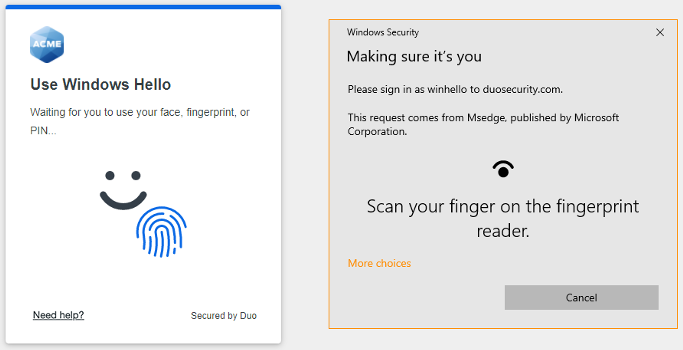
Step 3: Finish Setup
When you receive confirmation that you added Windows Hello as a verification method, select Continue.
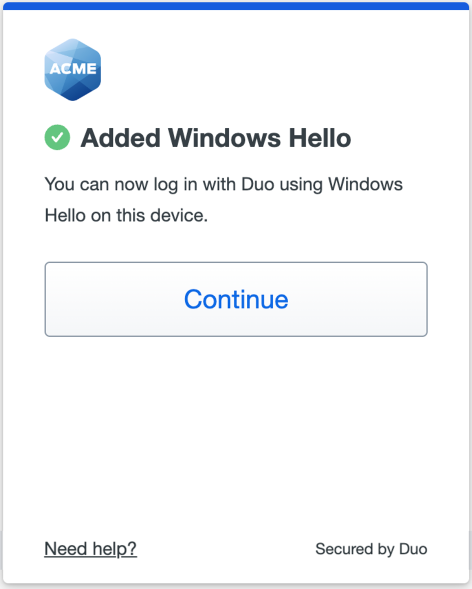
You can now use Windows Hello to quickly confirm your identity when signing in.
Touch ID on Mac
To use Touch ID with Duo, you will need:
- A MacBook Pro, MacBook Air, or Apple Magic Keyboard with a Touch ID button.
- A fingerprint enrolled in Touch ID.
- Safari or Chrome web browser.
- iCloud Keychain sync enabled on all the Apple devices you will use with Duo and the passkey you will create during setup.
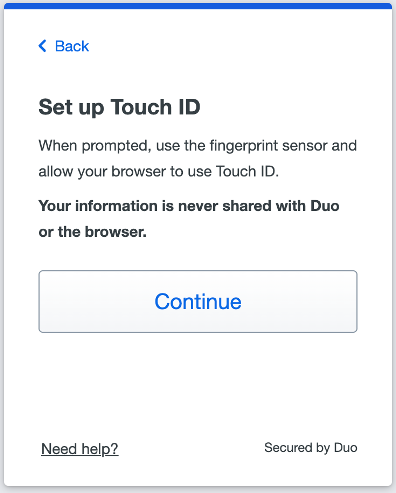
Step 1: Choose Touch ID on Mac
Read the Touch ID information and select Continue.
Step 2: Confirm Your Identity
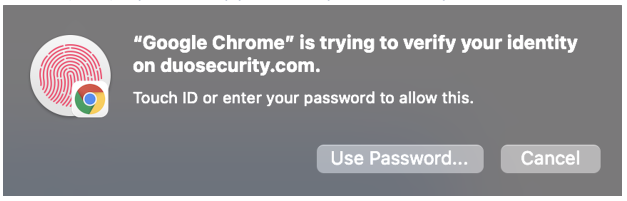
Chrome prompts you to verify your identity on duosecurity.com
Step 3: Complete Touch ID Enrollment
Place your finger on the Touch ID button in the Touch Bar to complete Touch ID enrollment.

Step 4: Finish Setup
When you receive confirmation that you added Touch ID as a verification method, select Continue.
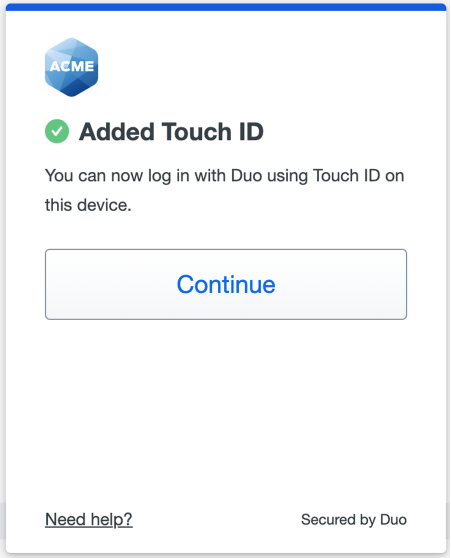
You can now log into Duo-protected applications that show the Duo prompt in a web browser using your Touch ID fingerprint sensor.
If you use more than one Mac with Touch ID, you may need to set up each device separately in Duo.
Duo Desktop
Duo Desktop allows you to confirm your identity directly from your computer when signing in.
Before you begin, you will need:
- Device must be running macOS 11 or later or Windlows 10 build 1803 or later.
- Duo Desktop 6.12.0 or later installed on Windows or Duo Desktop 6.12.0.0 or later installed on macOS.
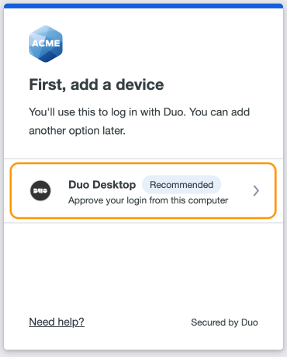
Step 1: Choose Duo Desktop
When you begin Duo setup for the first time, select Duo Desktop.
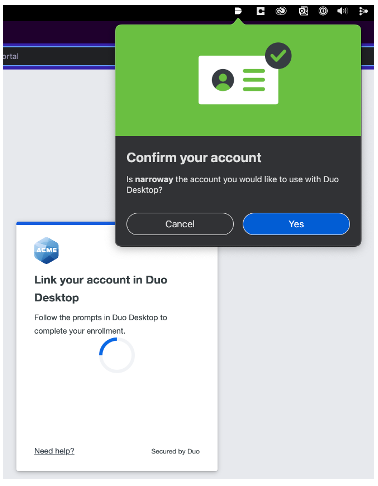
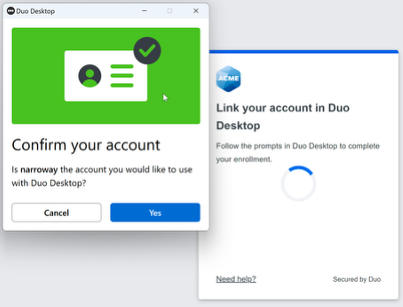
Step 2: Confirm the Connection
Duo Desktop will pop up a confirmation window. Select Yes to link your account.
On macOS:
On Windows:
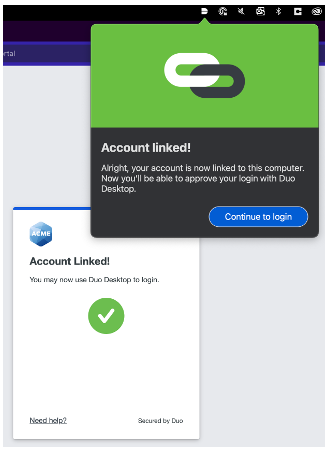
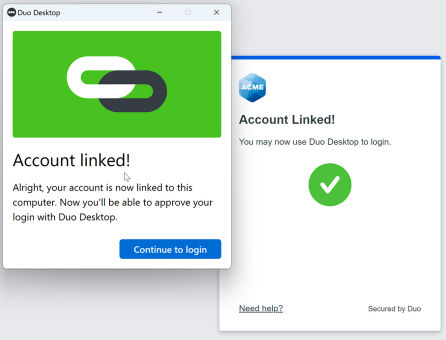
Step 3: Finish Setup
Select Continue to login.
On macOS:
On Windows:
Once setup is complete, you can use Duo Desktop to confirm your identity when signing in from your computer. In some cases, Duo Desktop may also work automatically on other computers you use.